This section describes the steps involved in configuring and using a CAD properties mapping file:
-
Examine your CAD file to identify properties to be mapped
-
Identify aPriori production inputs, and/or add UDAs to aPriori to be mapped to these properties and making them visible on the Cost Guide.
-
Create an XML file to map properties to UDAs and production inputs.
-
Test the extraction process
Examining CAD file for properties to be mapped
Before you map your CAD properties (also referred to as parameters) to aPriori , you need to know which ones you want to map. CAD systems that support properties provide a way to view and modify them. The specifics will vary from system to system but should be easy to identify. This example describes PTC Creo® parameters. Adjust the example for your CAD installation.
Identify CAD properties to be mapped
-
Start your CAD system and open a part that contains properties that you want to map for aPriori .
-
Display the part properties. This example assumes that the CAD system is PTC Creo®, in which case you would right-click the top-level entry of the Model Tree and click Edit Parameters or Parameters (depending on Creo® version) on the context menu. Adjust this step for your CAD system
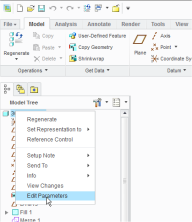
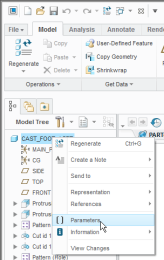


-
In the resulting properties display, review the available properties and make a list of the ones that you want to map for aPriori . Also note which, if any, should be mapped to aPriori system-defined production inputs (Process Group, Digital Factory, Material, Description, Revision, Annual Volume, Batch Size) rather than to User Defined Attributes (UDAs).
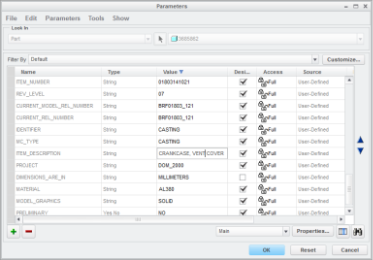

In this example, we map the Creo® ITEM_DESCRIPTION parameter to the aPriori Description system-defined attribute, and the Creo MATERIAL parameter to the aPriori Material system-defined attribute. We map the following Creo parameters to aPriori User Defined Attributes that we will define in the next section: REV_LEVEL, CURRENT_REL_NUMBER, and PROJECT.
PROJECT is a bit of a special case: there is an aPriori system-defined attribute named PROJECT, but it is not one of the production inputs that can be mapped to a property. So, we will map this to a new UDA named PROJECT_ATTR just to demonstrate that you can have UDAs and project inputs with the same name, and to caution you about this situation when planning your mappings.
This example maps the CAD REV_LEVEL property to a UDA named REV_LEVEL. You could also have mapped this (or a different CAD property named REVISION if it existed) to the aPriori system-defined attribute "REVISION". The XML for this alternative mapping is shown commented out in the XML screenshot in the previous section.